This table summarizes the purposes and related details for modifying a Cash Receipt (CR).
|
Purpose for modification |
Method details |
|
Reclassify unearned revenue as earned revenue |
Automatic - To have the system automatically generate a modification document that reclassifies revenue, you must fill in the Reclassification field on the original Cash Receipt document. You can also specify that the automatically generated document be put on hold to allow for further review or changes by checking the Hold Document indicator on the original receivable document. Manual – You can manually modify a cash receipt to reclassify collected revenue by reducing the amount of the affected accounting line and adding a new line with the new event type. |
|
Netting credit balance |
Automatic - If the automatic netting option is in use, the system can automatically apply overpayments tracked by the Unreserved Credit Balance to a customer account. The system subtracts the amount of money being applied to the new obligation from the accounting line on the cash receipt that created the overpayment and creates a new vendor/customer line to record an equal positive payment to a customer account. The system uses Auto Apply to reference the receivable lines in order. Manual - you can manually apply netting to either the Unreserved Credit Balance or to the Reserved Credit Balance. Do this by making the above entries manually to a Cash Receipt document. |
|
Increase collection amount |
Follow common document rules for modifying a document. Select the appropriate adjustment reason. |
|
Decrease collection amount |
Follow common document rules for modifying a document. Select the appropriate adjustment reason. |
|
Change accounting distribution |
Follow common document rules for modifying a document. Select the appropriate adjustment reason. For accounting lines specifying a line type of Principal, the system will warn you to make potential modifications on the existing interest and late fee lines to match what you changed on the principal line. |
|
For screen shots and field requirements for the CR Document Codes, refer to the appropriate section (Header, Vendor, Accounting, and Posting). |
The following scenario illustrates correcting a clerical error that results in liquidating the incorrect receivable. The scenario will illustrate the creation of a cash receipt modification that represents correction to the original entries reference to a receivable (reduce original receivable reference and reapply to a different receivable reference).
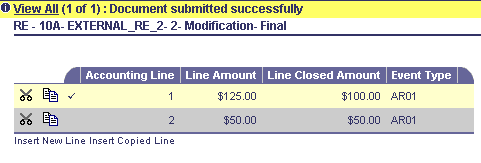
A CR document is submitted referencing the RE for $150.00, leaving $25 outstanding on the first accounting line. Shown below is the summary grid of the RE document showing the closed amounts after the CR is finalized.
You determined that the CR document that was applied to RE 10A EXTERNAL_RE_2 was incorrectly applied. There is another RE document (RE 10A EXTERNAL_RE_3) for $150.00 that needs to be liquidated first.
To modify a RE, perform these steps:
Search for the CR document to be modified.
Click the Edit button.
Reduce the incorrect reference/payment towards RE 10A EXTERNAL_RE_2
Apply the payment towards RE 10A EXTERNAL_RE_3
Expand the Header section.
Click the Auto Apply link.
Navigate to Vendor Line 1 and the respective accounting lines to ensure that the payment has been reduced.
Notice the Line Amount of $0.00 and the reason code inferred into the accounting lines. Notice the posting lines increasing cash.
Navigates to the accounting lines of Vendor Line 2 to ensure that the payment has been applied to the correct RE. Notice the posting lines.
Click the Validate button.
After validate, the Line Type Name is displayed.
If errors exist, fix the errors and repeat Step 9. If no errors exist, then continue with Step 11.
Click the Submit button to submit the document.